How can I manage my Quick Access tab cards in Samsung Wallet
Important Note: The information on this page is for Hong Kong products only. Models, sequences or settings will vary depending on location and/or where the product had been purchased. To be redirected to your local support page please click here.
Samsung Wallet gives you the option to manage your favourite cards in a quick and easy way. You will be able to access your cards from the lock or home screens, or even when your screen is off, all without the need to carry a physical card with you thanks to its quick access tab feature.
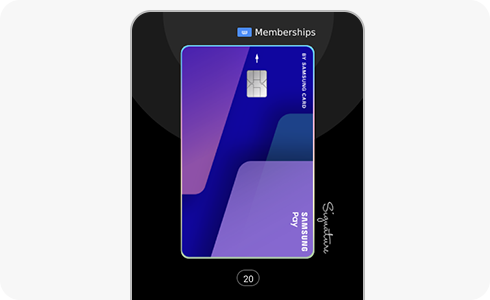
Samsung Wallet allows you to add or remove favourite cards, quickly access them, or change the order of these cards. To do this, just follow these steps:
By default, all your registered credit and debit cards are added as Quick Access tab cards. But you can add or remove your preferred cards at any time. To do this, follow these steps:
Please note: You can set up to 40 cards as Quick Access tab cards.
To quickly access to your payment cards, simply swipe up from the bottom of the screen to pull up your Quick Access tab cards. They can be accessed from the Lock screen, Home screen, or when your screen is off.
To make things even easier, you can change the order of your Quick Access tab cards. To do this, just follow these steps:
If the above information does not match what your product is showing, you may check the User Manual for your product. If you are unable to solve the problem, please contact us for further assistance.
Thank you for your feedback!
Please answer all questions.
RC01_Static Content : This text is only displayed on the editor page