How to automatically optimise your Galaxy device
Important Note: The information on this page is for Hong Kong products only. Models, sequences or settings will vary depending on location and/or where the product had been purchased. To be redirected to your local support page please click here.
Device Care automatically performs various optimisations, such as closing background apps and cleaning up memory, to keep your phone running optimally. Android 13(T) OS (One UI5) includes an updated Auto Optimisation feature, which allows you to set your phone to restart when not in use to keep it running optimally.
How to turn on Auto Optimisation/Restart when needed
Previous versions of the Automatically optimise daily and Automatic restart features required users to manually set a day and time to optimize/reboot. This is no longer required as the device will perform automatically optimize itself when it is required.
Automatic optimisation will take place when the device is not being used (Screen is off, not in a call or playing music etc). This is often performed during early morning hours.
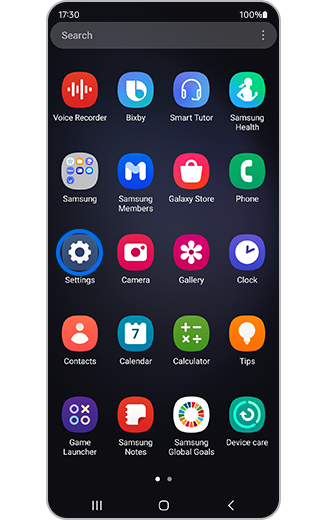
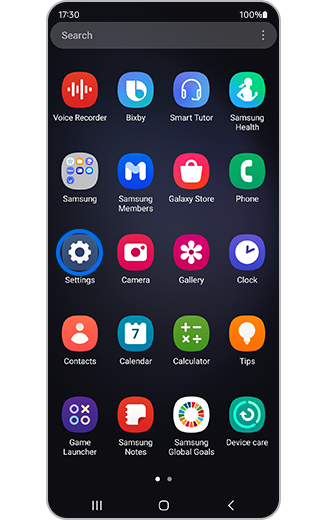
Step 1. Open the Settings menu.
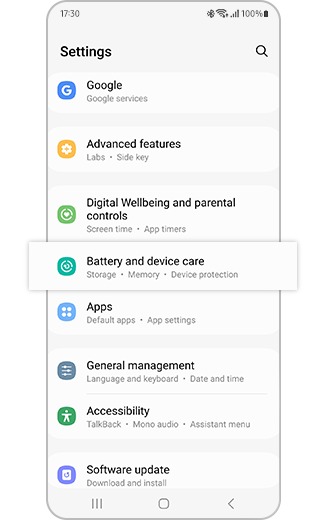
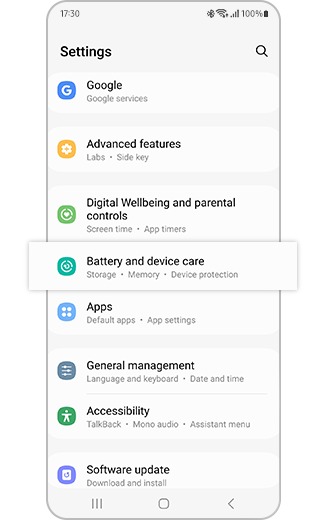
Step 2. Tap “Battery and device care”.
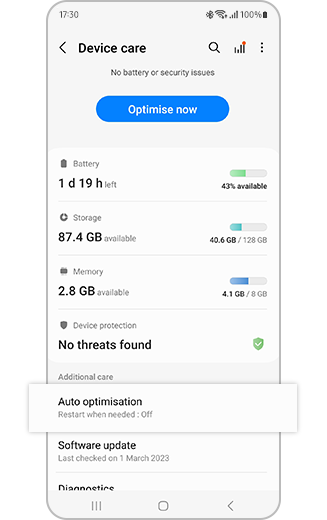
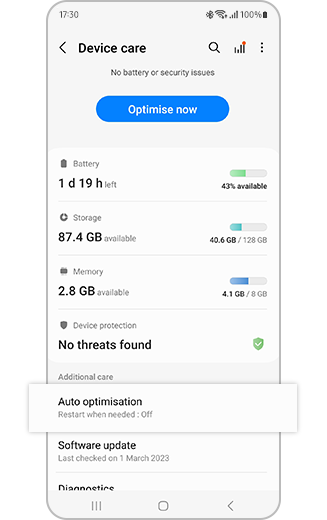
Step 3. Tap “Auto optimisation”.
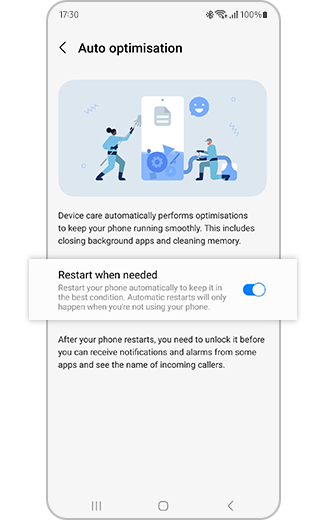
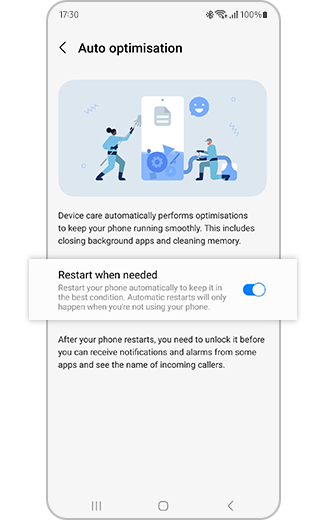
Step 4. Tap “Restart when needed” switch to turn on.
If the above information does not match what your product is showing, you may check the User Manual for your product. If you are unable to solve the problem, please contact us for further assistance.
Thank you for your feedback!
Please answer all questions.
RC01_Static Content : This text is only displayed on the editor page