How to use Maintenance mode on your Galaxy phone or tablet
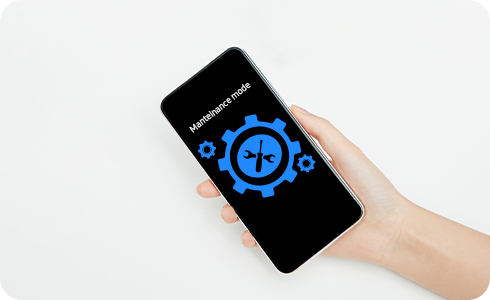
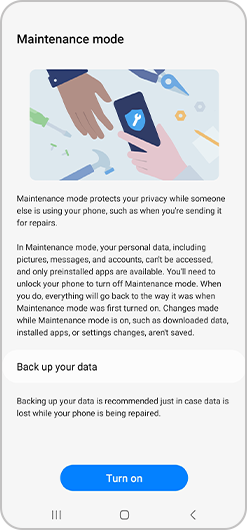
Maintenance Mode is a new service introduced alongside Android 13 and One UI 5.0 which has been designed to protect and hide your personal data from being accessed during a repair process.
Once it has been activated Maintenance Mode creates a separate user account (using MUM*) which has no access to your personal data and where only pre-installed applications can be accessed.
Any pre-installed apps that might hold customers information (i.e. Facebook) will be accessible but all user accounts will be logged out to prevent access to your information.
How to find Maintenance Mode?
Maintenance Mode can be found and activated via the Samsung Members app or through the Battery and device care service in the Settings menu. For instructions on locating it through Settings please follow the steps below.

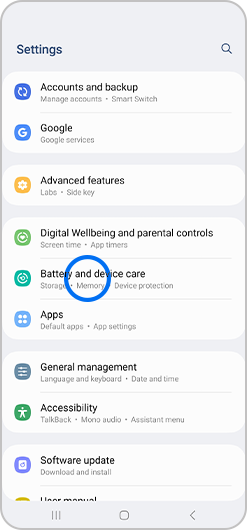
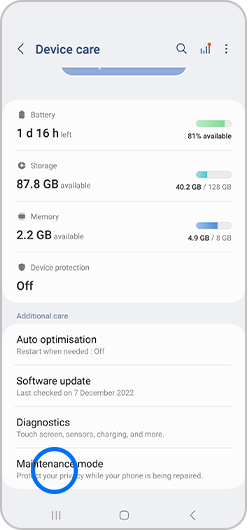
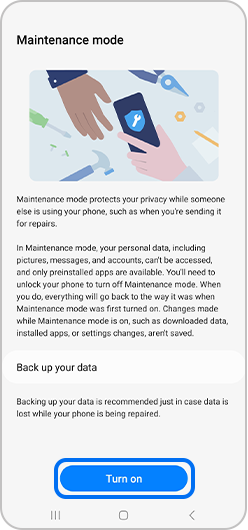
Please note that if lock screen security is not used you will be prompted to designate a security method e.g. (PIN, password, pattern or fingerprint) before you can enable Maintenance Mode.
Once this has been enabled the device will restart in Maintenance Mode and personal data such as photos, videos, contacts etc will no longer be available.
To deactivate maintenance mode after the repair you will need to enter the screen lock method.
How to activate via Samsung Members app
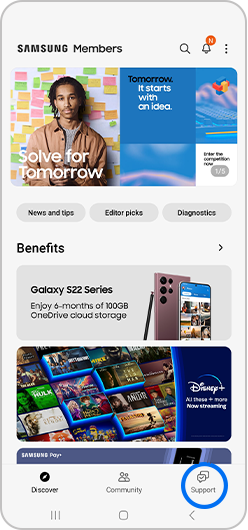
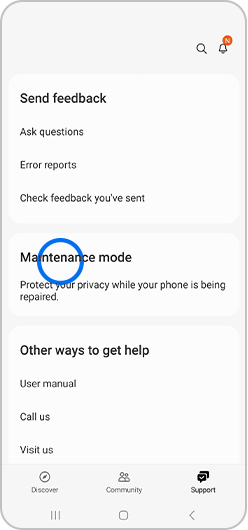
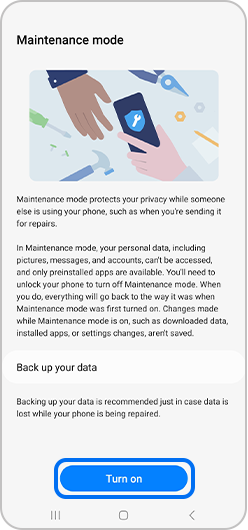
You can activate Maintenance Mode in Samsung Members by following the steps below.
How to back up your data on Samsung Cloud before entering Maintenance Mode
You can use the option Back up to Samsung Cloud (called Temporary cloud backup from One UI 5.1.1) to create a temporary backup of your data while your phone is in Maintenance Mode.
This will ensure that your data is safe even if your device has to be reset or if the mainboard requires replacing.
To back up your data before entering Maintenance Mode, go to:
Settings > Battery and device care > Maintenance mode > Back up your data > Back up to Samsung Cloud
Files backed up to Samsung Cloud are kept for 30 days from the date the backup is created. You can check the status of the temporary backup and the storage period in the Samsung Cloud app.
When the 30-day period expires, temporary backup files will be deleted. A notification will be sent one week before deletion. It is not possible to extend the storage period.
There is no limit to how much data can be backed up, but the maximum individual file size is 100GB.
You need a Samsung account and a Wi-Fi connection to back up your data on Samsung Cloud.
Preparing for Maintenance Mode
Did you know that you can create a system log prior to activating Maintenance Mode? This will help our service centre repair experts to analyse error log information.
To activate the system log please select the ‘Restart’ option.
Please note that if you select the, ‘Restart without creating log’, option the device will restart immediately into Maintenance Mode.

How to deactivate Maintenance Mode
Once your repair is complete you can disable Maintenance Mode using your chosen unlock pattern. Please follow the steps below:
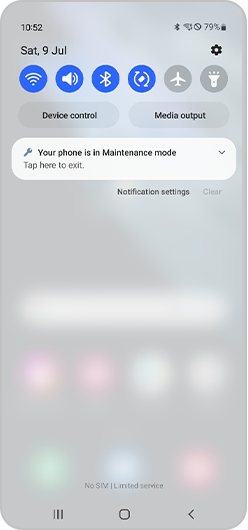
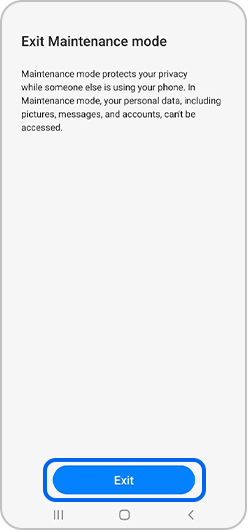
Your device will then reboot and return to normal – access will be restored to your usual settings.
What devices is Maintenance Mode available on?
Mobile devices
|
Device Name |
|---|
|
Galaxy S23 series |
|
Galaxy S22 Series |
|
Galaxy Z Flip4 |
|
Galaxy Z Fold4 |
|
Galaxy S21 Series |
|
Galaxy S21 FE |
|
Galaxy Z Flip3 |
|
Galaxy Z Fold3 |
|
Galaxy S20 Series |
|
Galaxy S20 FE |
|
Galaxy Note20 Series |
|
Galaxy Z Fold2 |
|
Galaxy Z Flip |
|
Galaxy S10 Series |
|
Galaxy S10 Lite |
|
Galaxy Note10 Series |
|
Galaxy Z Fold |
Tablets
|
Device Name |
|---|
|
Galaxy Tab S8 Series |
|
Galaxy Tab Active4 |
|
Galaxy Tab S7 FE |
|
Galaxy Tab A8 |
|
Galaxy Tab S7 Series |
|
Galaxy Tab A7 |
|
Galaxy Tab A7 Lite |
|
Galaxy Tab Active3 |
|
Galaxy Tab S6 Series |
How to activate and deactivate Maintenance mode
Maintenance mode is a feature that is designed to protect the personal data and information stored on your Galaxy smartphone or tablet when it is being repaired.
Please note: Always backup your device before sending for repair as data could be lost.
Video transcript: How to use Maintenance mode on your Galaxy phone or tablet
How to use Maintenance mode on your Galaxy phone or tablet
- How to activate Maintenance mode
- Maintenance mode is not activating on my tablet
1. How to activate Maintenance mode
Benefits of Maintenance mode:
- It protects personal data by preventing access to your photos, videos, messages, call history and other files
- Only pre-installed apps will be available
- All data and accounts created in Maintenance mode will be automatically deleted
Activate Maintenance mode from Settings
- Tap on Settings
- Go to Device Care
- Tap Maintenance mode
- Tap Turn On
You will be given the option to create a log.
This system log will contain information about recent app usage and system errors, which can help in repairing the device.
- Tap Restart
You need to set up a lock method when activating Maintenance mode.
Activate Maintenance mode from Samsung Members
- Open Samsung Members
- Tap on Support
- Scroll down to Repair Service
- Enter Maintenance mode
- Tap Turn on
- Choose whether to create a Log and tap Restart
Unlock your device to confirm your identity.
Your device will restart in Maintenance mode.
Deactivate Maintenance mode
- Tap on Settings
- Access Device Care
- Tap on Maintenance mode
- Tap on Exit
- Press Restart to confirm
Unlock your device to confirm your identity.
Your device will restart in normal mode.
2. Maintenance mode is not activating on my tablet
If you are having trouble activating Maintenance mode, it may be due to Multi-User Mode.
The Users menu allows you to grant different levels of access to other users.
Navigate to the Users menu
- Tap on Settings
- Enter Accounts and backup
- Tap on Users
If you are using this feature, you must select Administrator (Owner) to activate Maintenance mode.
Please visit Samsung Support for further support.
Thank you for your feedback!
Please answer all questions.