What to do if your Samsung Galaxy phone folder does not appear on PC connection
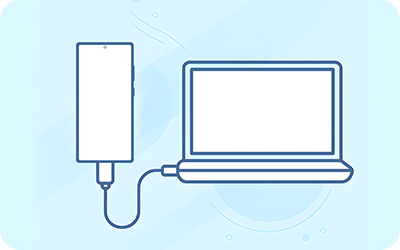
Allowing access to phone data
When a phone is connected to a PC, a prompt appears asking for permission to access phone data. Without tapping Allow, the PC cannot display the phone’s folders.

Step 1. Connect your Galaxy phone to the PC using a compatible USB data cable.

Step 2. When the Allow access to phone data message appears, tap Allow.
Note:
- If the prompt does not appear, download and install the latest USB driver for your device on the PC, then try again.
- If the phone is still not recognized after installing the USB driver, check whether the driver is installed correctly on the PC.
If your phone is connected but still not recognized, the issue may be caused by the current USB usage setting. In some modes, such as charging only, the PC may display only the device name or no folder at all. To transfer files, change the USB usage mode to Transferring files so the internal storage can be accessed from the PC.


Step 1. Swipe down from the top of the screen to open the notification panel, and then tap the USB settings notification.


Step 2. Select the Transferring files / Android Auto option, under Use USB for.
Note: Device features, menu names, and paths may vary depending on the model, software, and app version.


Service Centers


Locate the nearest Samsung service center to have your product checked.
Thank you for your feedback!
Please answer all questions.
Contact Info
WhatsApp
![WhatsApp]()
![WhatsApp]()


Monday to Saturday
8:00 a.m. a 12:00 a.m.
LiveChat
![LiveChat]()
![LiveChat]()


Monday to Saturday
8:00 a.m. a 12:00 a.m.