How to connect Bluetooth headphones to my Samsung Smart TV
Samsung Smart TVs feature vivid large screens and rich sounds, but sometimes not everyone in the room wants to enjoy the same thing you do. With the Bluetooth headphones/earphones, you can enjoy TV shows, movies, and games without interrupting anyone else in the room. Make sure your TV supports the Bluetooth function. If it does not, follow the guide below for other options.
Check the following before connecting to a TV
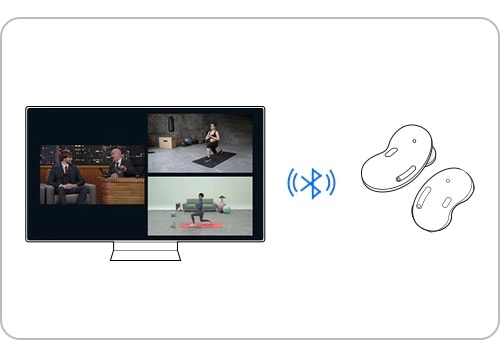
Check 1. Bluetooth headphones made exclusively for mobile devices cannot be connected to your Samsung Smart TV.
Check 2. Bluetooth devices can be blocked by walls, corners, or furniture, which can lead to poor compatibility.
Check 3. Only one Bluetooth device at a time can be paired to TV.
Note: Samsung Smart TVs manufactured from 2022 can connect to two Bluetooth devices. Click the link to learn more.
Check 4. The connection between the Bluetooth device and your TV may be disrupted if the distance between the device and TV is too great.
Note: Each Bluetooth headphone model has different functions and may perform differently. Please refer to the user guide of the product you are trying to use for specific details.
Option 1. Quick Settings
Step 1. Press and hold the pairing button on the Bluetooth headphones you want to connect to.
Step 2. Turn on your TV and press the Home button on the remote.
Step 3. Navigate to Source > Connection Guide.

Step 4. Select Audio Device > Bluetooth.
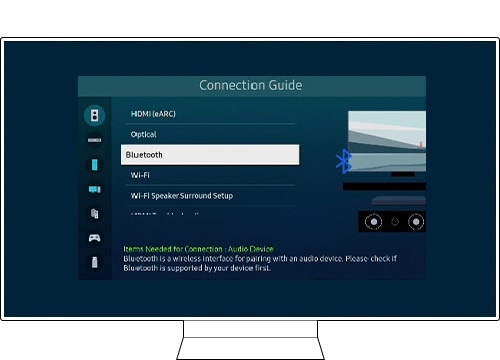
Step 5. Use the Directional pad for the next step and then press Set Up Now.
Set your Bluetooth device to begin actively pairing.
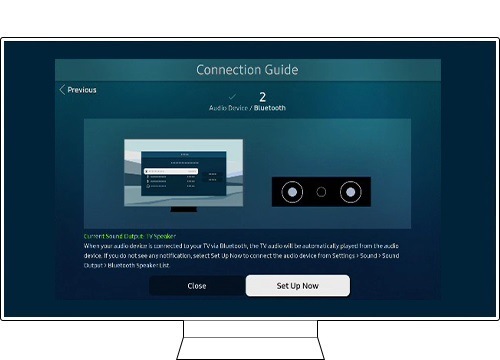
Note: Please consult the user guide of your Bluetooth device for more information.
Option 2. Settings menu
Step 1. Press and hold the pairing button on the Bluetooth headphones you want to connect to.
Step 2. Turn on your TV and press Home > Settings.
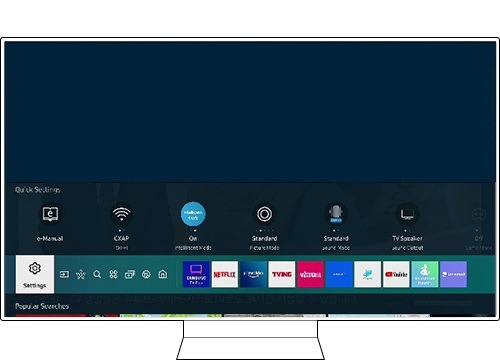
Step 3. Select Sound > Sound Output.
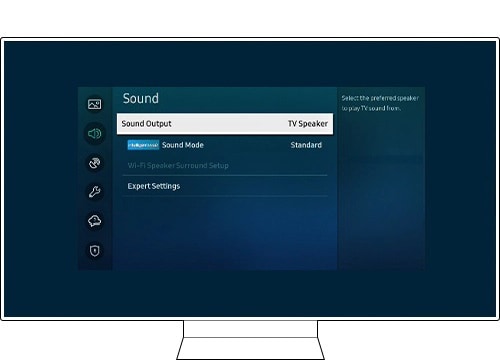
Step 4. Select Bluetooth Speaker List.

Step 5. When the headphones you want to connect to appear on the screen, press Select to complete the pairing.
Set your Bluetooth device to begin actively pairing.

Note: Please consult the user guide of your Bluetooth device for more information.
Bluetooth Headphones Connection and Sound Output
When paired Bluetooth headphones are turned on, a pop-up will appear on the TV screen asking whether to play the sound.
Once connected:
- Adjust the volume using the TV remote control.
- The sound from the TV will automatically play through the selected Bluetooth audio device
If the sound output doesn't change automatically:
- Go to Home > Settings > Sound > Sound Output > Bluetooth Speaker List and select your device.
- When the Bluetooth headphones are turned off, the sound output will automatically switch back to the TV speakers.


Service Centers


Locate the nearest Samsung service center to have your product checked.
Thank you for your feedback!
Please answer all questions.
Contact Info
WhatsApp
![WhatsApp]()
![WhatsApp]()


Monday to Sunday
8:00 a.m. a 12:00 a.m.
LiveChat
![LiveChat]()
![LiveChat]()


Monday to Sunday
8:00 a.m. a 12:00 a.m.