How To Get The Most Out Of Your New Galaxy Tab With An S Pen


You’ll find Samsung’s state of the art stylus pen seamlessly integrated with the latest Galaxy Tabs. If you’re looking for power and accuracy in every movement and a pen to paper experience, you can’t go wrong with a Samsung S Pen. Read on to explore how you can get the most out of your new Samsung tablet using the S Pen.
How does the Tab S Pen work?
The S Pen is the epic Samsung stylus which gives you the power to go beyond basic touch interaction with your new Samsung tablet. Designed to feel like a real pen with 4,096 levels of pressure sensitivity you can get creative with writing, drawing and swiping.
To get your S Pen to work, simply pick it up, hover it over the screen and start writing. To access the full S Pen features, you’ll need to activate Air Command; Samsung’s innovative software that enables seamless interaction with your Galaxy Tab.
Explore the S Pen features in the Air Command menu
Simply hover your S Pen over the tablet screen to access the Air Command menu (a small circle with pen icon). Here you’ll have the option to:
- Create note: get writing and drawing with Samsung Notes
- Smart Select: use your S Pen to select and save content
- Screen write: Write on the current screen with your S Pen
- Live messages: Get personal with your own animated GIFs, emojis and handwritten text on photos
- AR Doodle: draw, annotate and doodle on surfaces using the S Pen and Galaxy Tab camera
- Translate: use your S Pen to hover over a word or phrase to see an instant translation. You can even hear how it’s pronounced by tapping on the sound icon.
- PENUP: get drawing, colouring or designing with your S Pen and the PENUP app.
You can find more information about using the S Pen in our ‘Get the most out of your S Pen’ guide.
How to draw on a Samsung tablet?
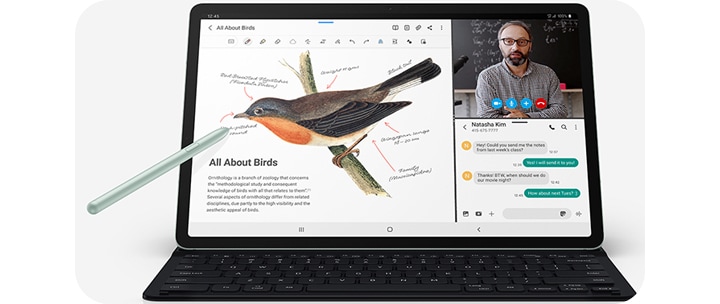
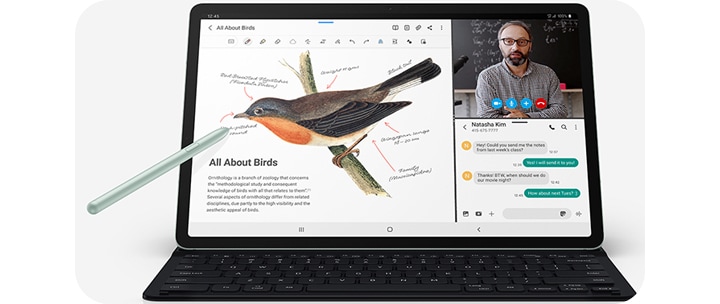
Drawing and writing on a Galaxy Tab have never been easier with the epic S pen in the latest Galaxy Tab. Whether you’re looking to use the S Pen to boost your productivity or get creative with digital art you have a number of options:
Love to draw or take notes? See how you can create your ideal productivity setup with innovative stylus-ready tech built for creativity and focus.
1. Samsung Notes
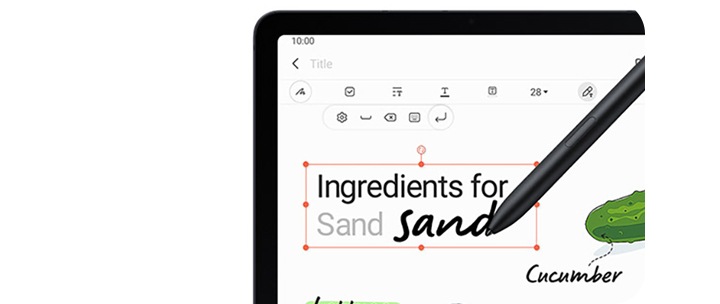
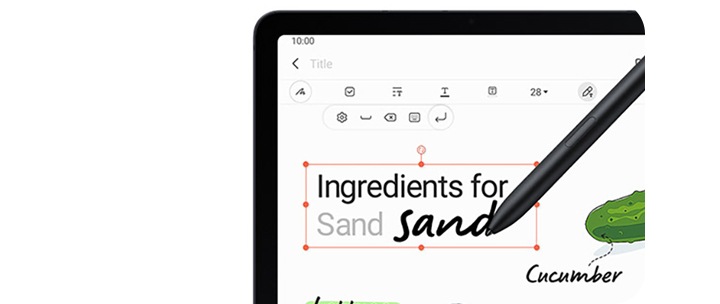
Simply tap ‘create a note’ in the Air Command menu to begin. You can write, draw, highlight, adjust the size and change the transparency of your text - the freedom is yours. When you’re done, simply save and share. Find our step-by-step guide to taking notes using your S Pen here.
2. Screen Write
Annotating images, charts or PDF documents is easy with Screen Write. You’ll find Screen Write in the Air Command menu. Once you tap Screen Write, a screen capture will be taken of the content you are reviewing and the S Pen annotation tools will automatically open. You can then add notes with the S Pen, crop the image and share your ideas via email or messaging apps.
3. Screen off Memo
Suddenly remembered something you’ve forgotten? Simply remove the S Pen and start writing on your new Galaxy Tab screen without even needing to unlock it. When you’re done you’ll find all your saved memos in Samsung Notes.
4. Handwriting to Text
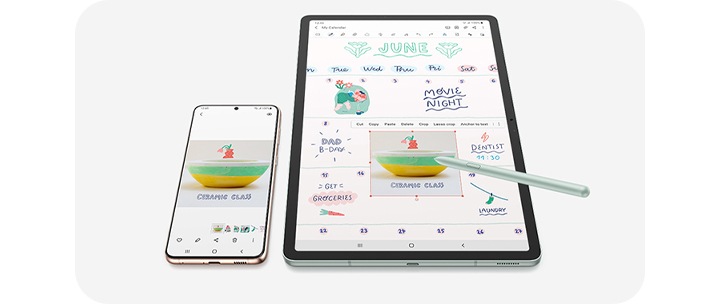
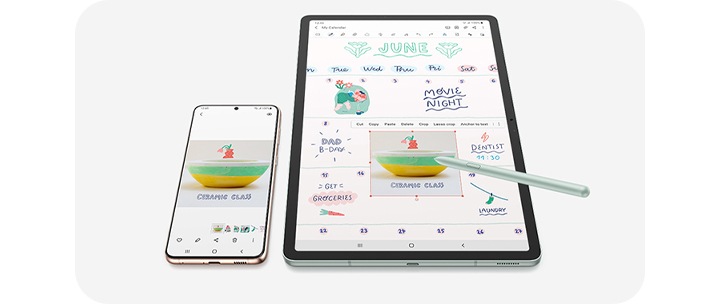
Bored of typing? In any app where you can type with an on screen keyboard, hover over the text field with your S Pen and select the handwriting icon (letter T) and get writing with your Samsung stylus.
5. PENUP
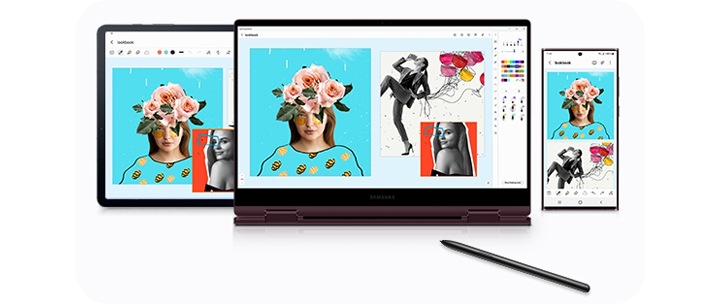
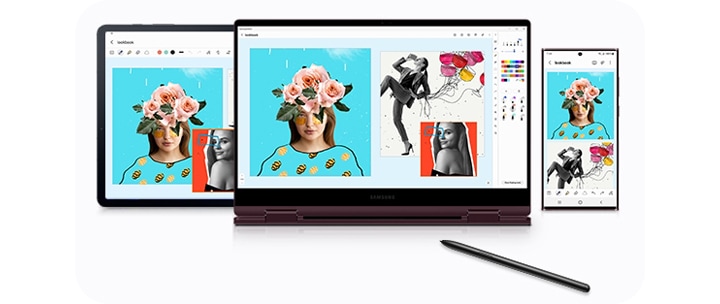
When it’s time to sit back and relax, PENUP has you covered. Learn to draw, get artistic with your own design or chill with some mindful onscreen colouring all thanks to the S Pen. For next level creativity the Galaxy Tab S11 series have teamed up with Clip Studio Paint*, the painting app used by professionals, so you can get creating masterpieces. Use your Galaxy smartphone as the artistic palette and your entire Tab S11 screen as your canvas.
*Clip Studio Paint membership required. 6-month free trial for first-time users.
*Clip Studio Paint membership required. 6-month free trial for first-time users.
Does the S Pen work on all Samsung tablets?
The innovative Samsung stylus pen is available with the Galaxy Tab S10 and latest Tab S11 Ultra. Perfectly integrated into the back of the tablet the Galaxy Tab S Pen connects and charges seamlessly with the latest range of Galaxy Tabs.
Please note: For full functionality only use the S Pen designed for your Galaxy Tab.
Which is the best Samsung tablet with an S Pen?
The incredible Galaxy Tab S11 series takes the award winning formula from previous Galaxy Tab models and continues to innovate to make them even more exceptional. Bursting with stunning features, immersive screens and powerful batteries the Galaxy S11 range has something for everyone.
If you’re looking for the best Samsung tablet with an S Pen you can’t go wrong with the gorgeous Galaxy Tab S11 Ultra 5G. There’s the brand new integrated S Pen stylus that magnetically snaps into the top of the tablet to charge and the ultra-low latency brings all your ideas to life whilst giving you impressive levels of control. You can even combine it with the awesome Galaxy S26 series to create artwork masterpieces with Clip Studio Paint*. And to top it all off it’s the thinnest and toughest Samsung Galaxy Tab yet with its impressive Armour Aluminum casing.
For even more inspiration check out our ‘How to choose the best tablet for you’ and ‘Which Tablet Screen Size Is Best For You?’ buying guides.
*Clip Studio Paint membership required. 6-month free trial for first-time users.
Most common questions
Explore answers to frequent queries below.


YouTube Video Schema
