Transfer data during the initial setup
Note
The initial setup screen may vary depending on your carrier and software version.
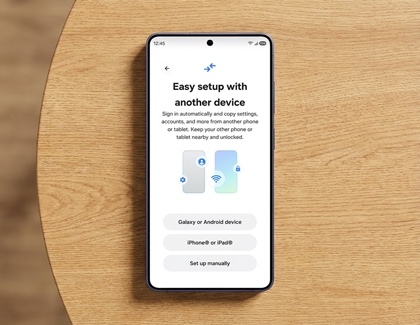
Quick setup with Smart Switch lets you easily transfer your existing accounts and networks via a QR code.
- Power on your new Galaxy S26 to start the initial setup wizard.
- Select your preferred language, tap Start.
- Review the terms displayed on the screen. Select and agree to the terms you consent to.
- You'll be prompted to set up your new device using your old phone. Choose between Galaxy or Android device or iPhone or iPad. For this example, select Galaxy or Android device.
- A Smart Switch QR code will appear on your new phone.
- Scan the QR code displayed on your new phone using your old phone. Follow any on-screen instructions as prompted.
- When you reach the Copy apps & data screen on your new phone, tap Next, then tap Agree, and then tap Allow.
- Tap Wirelessly or Cable on your new phone, and follow the prompts to connect both phones.
Note: For wireless transfers, be sure to keep the devices within 4 inches of each other.
- Choose the data you want to transfer using your new phone, then tap Next to begin.
Read more
Read less
Wireless transfer from Android or iOS
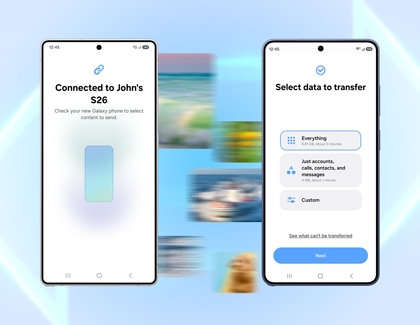
Wireless transfer can be a convenient option for moving data, as it enables both phones to stay connected to their chargers throughout the process. To transfer wirelessly:
- Ensure the Smart Switch app is installed on both phones.
- Place both phones within 4 inches of each other, then open Smart Switch on both.
- If it's your first time using Smart Switch, tap Agree and then Allow to accept the terms of service.
- On your old phone, tap Send from this phone, and then select Wireless.
- On your new phone, tap Receive on this phone, select the type of phone you're transferring from (e.g., Galaxy or Android device or iPhone or iPad), and then choose Wireless.
- On your old phone, scan the QR code shown on your new phone. Smart Switch will then scan for transferable content.
- Choose to transfer Everything, Just accounts, calls, contacts, and messages, or Custom, and then tap Next to begin.
Read more
Read less
Transfer using a USB cable
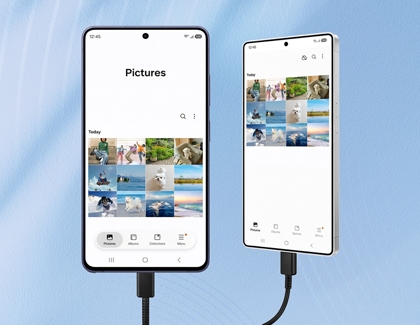
If you prefer a wired connection, you can use a USB cable:
- Ensure the Smart Switch app is installed on both phones.
- Connect your phones using your old phone's USB cable. A USB-OTG adapter may be needed.
- Launch Smart Switch on both phones.
- If it's your first time using Smart Switch, tap Agree, and then Allow to accept the terms of service.
- On your old phone, tap Send from this phone, then Cable.
- On your new phone, tap Receive on this phone, select the type of phone you're transferring from, and then tap Cable.
- Tap Connect on your old phone. Smart Switch will then scan for transferable content.
- Choose to transfer Everything, Just accounts, calls, contacts, and messages, or Custom, and then tap Next to begin.
Read more
Read less
Transfer using external storage
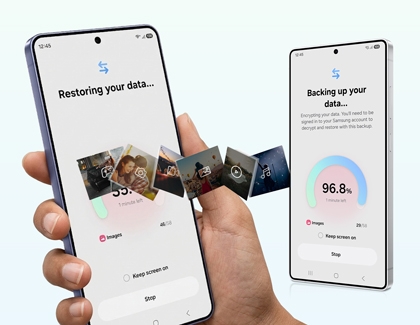
If you prefer using an external storage device like a USB flash drive, follow these steps:
- Ensure the Smart Switch app is installed on both phones.
- Insert the USB OTG storage into the old phone.
- Open Smart Switch on the old phone, and then tap the SD card icon.
- Select Back up to, and then choose the external storage.
- Choose the data you want to transfer, and then tap Next.
- Once the backup is complete, remove the storage device and insert it into the new phone.
- Open Smart Switch on the new phone, tap the SD card icon, and then tap Restore from.
- Choose the data to restore, and then tap Restore.
Read more
Read less
Transfer from iPhone using iCloud
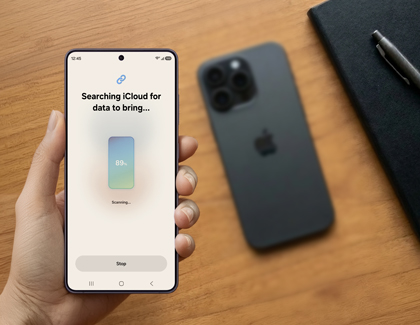
If you are switching from an iPhone, you can transfer data via iCloud:
- Open Smart Switch on your new Galaxy S26.
- If it's your first time using Smart Switch, tap Agree and then Allow to accept the terms of service.
- Next, tap Receive data, tap iPhone or iPad, and choose Get data from iCloud at the bottom of the screen.
- Enter your Apple ID and password, then tap Sign in to iCloud.
- A prompt will appear on your iPhone. Tap Allow to view the verification code.
- Enter the code on your Galaxy phone, and then tap Connect.
- Tap OK on the iPhone to dismiss the code pop-up.
- Choose the data you want to transfer, and then tap Transfer.
For additional methods to transfer content from an iOS device using Samsung Smart Switch, refer to our other guide.
Read more
Read less
Transfer using Google
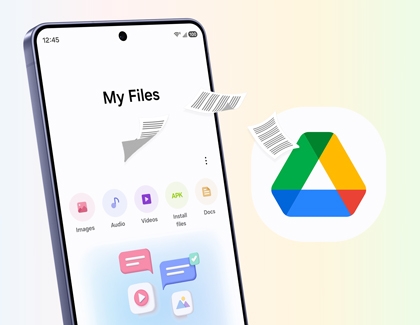
Google Drive lets you back up your data to your Google account, but restoring it is only possible during the Setup Wizard when signing in to your Google account on a new or reset device. This means you can't restore data directly from the device's settings. Instead, start the setup process and follow the prompts to choose the backup and restore your data.
Read more
Read less




